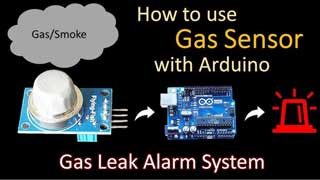
Gas leak Alert using a buzzer and learn how Gas Sensor works.
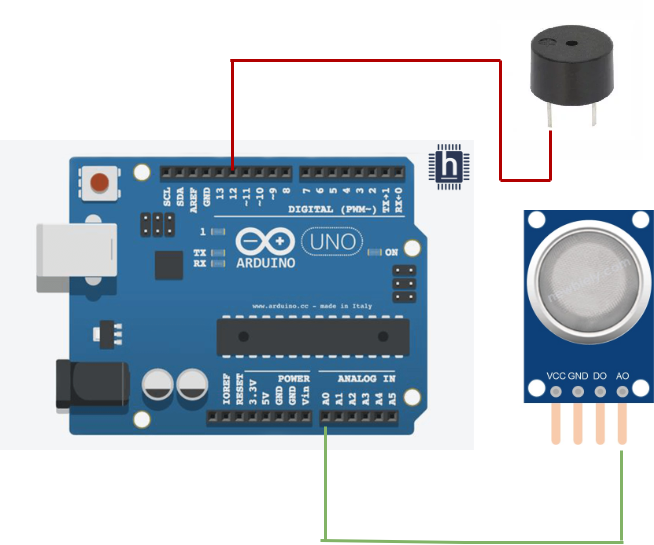
int gasSensorPin = A0; // Analog pin A0 connected to the gas sensor
int buzzerPin = 12; // Digital pin 12 connected to the buzzer
int threshold = 300; // Gas detection threshold value (adjust based on
your sensor and environment)
void setup() {
pinMode(buzzerPin, OUTPUT); // Set buzzer pin as output
Serial.begin(9600); // Initialize serial communication
}
void loop() {
int gasLevel = analogRead(gasSensorPin); // Read gas level from sensor
Serial.print("Gas level: ");
Serial.println(gasLevel); // Print gas level to the Serial Monitor
if (gasLevel > threshold) { // If gas level exceeds the threshold
digitalWrite(buzzerPin, HIGH); // Turn on the buzzer
} else {
digitalWrite(buzzerPin, LOW); // Turn off the buzzer
}
delay(1000); // Wait for 1 second before checking again
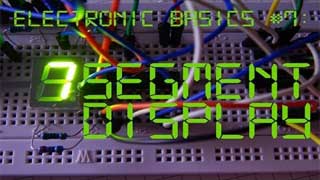
}Display Digits from 0 to 9 using a 7 segment display unit and Arduino
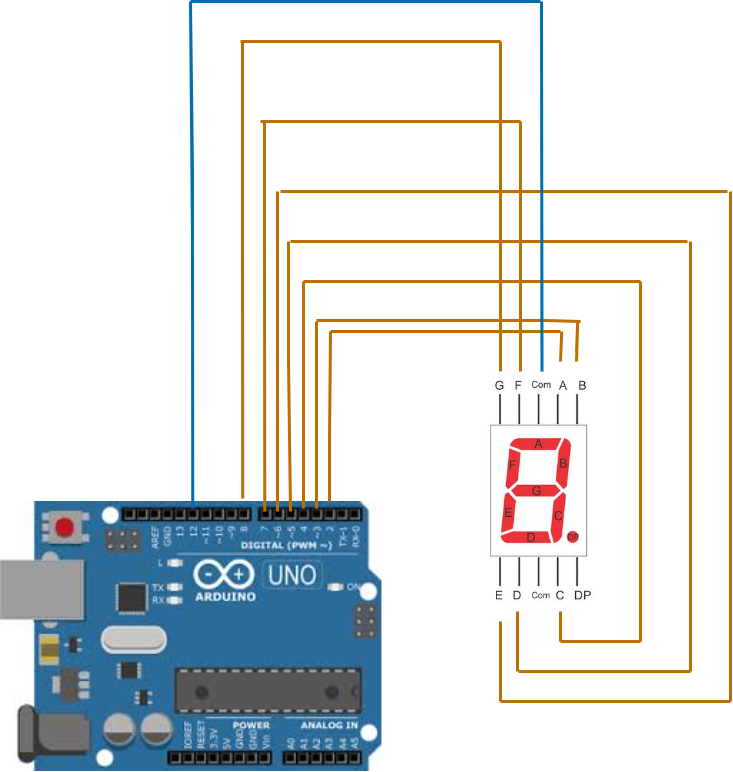
int digit[10] = {0b0111111, 0b0000110, 0b1011011, 0b1001111,
0b1100110, 0b1101101, 0b1111101, 0b0000111, 0b1111111,
0b1101111};
int digit1;
void setup(){
for (int i = 2; i < 9; i++){
pinMode(i, OUTPUT); }
pinMode(12, OUTPUT); //declare 7 seg Digit1 pin as output
}
void loop() {
for (int j = 0; j <= 9; j++) {
digit1 = j % 10;
for ( int k = 0; k < 20; k++){
digitalWrite(12, HIGH);
dis(digit1);
delay(10);
digitalWrite(12, LOW);
dis(digit1);
delay(10);
} } }
void dis(int num){
for (int i = 2; i < 9; i++) {
digitalWrite(i, bitRead(digit[num], i - 2));
}}The objective is to learn how to control high-power devices using a relay by sending a digital signal from a microcontroller. This involves using a relay module to safely switch high-power devices on and off with low-voltage control signals.
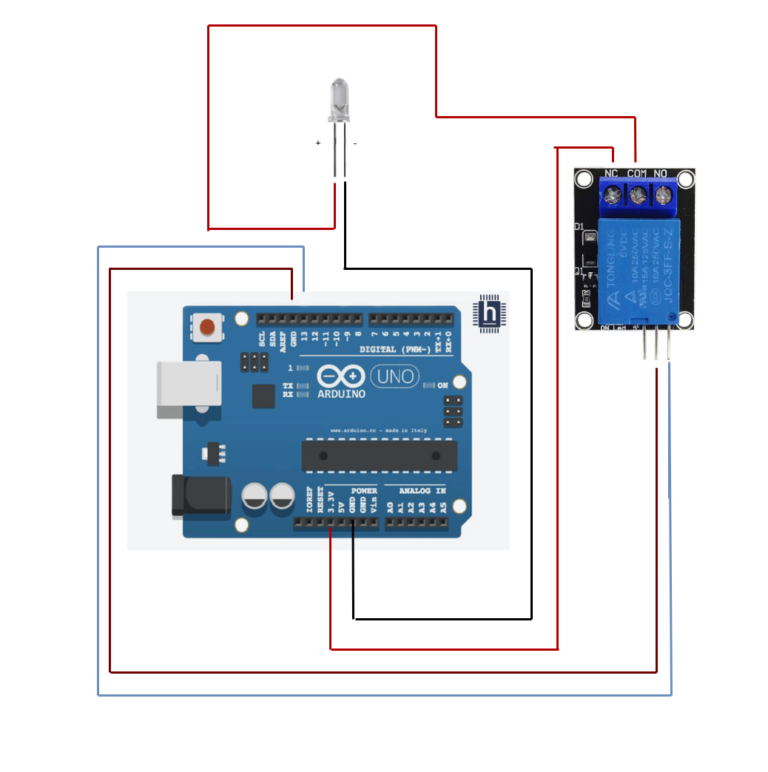
int relay = 13; // Plug the relay into Digital Pin 13


void setup() {
  pinMode(relay, OUTPUT);
}


void loop() {
  digitalWrite(relay, HIGH); // Turn the relay on
  delay(1000); // Wait 1 second
  digitalWrite(relay, LOW); // Turn the relay Off
  delay(1000); // Wait 1 second
}
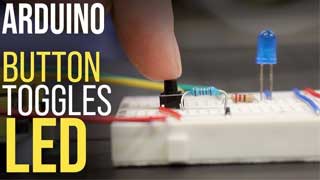
Toggle the LED ON/OFF using Push button..
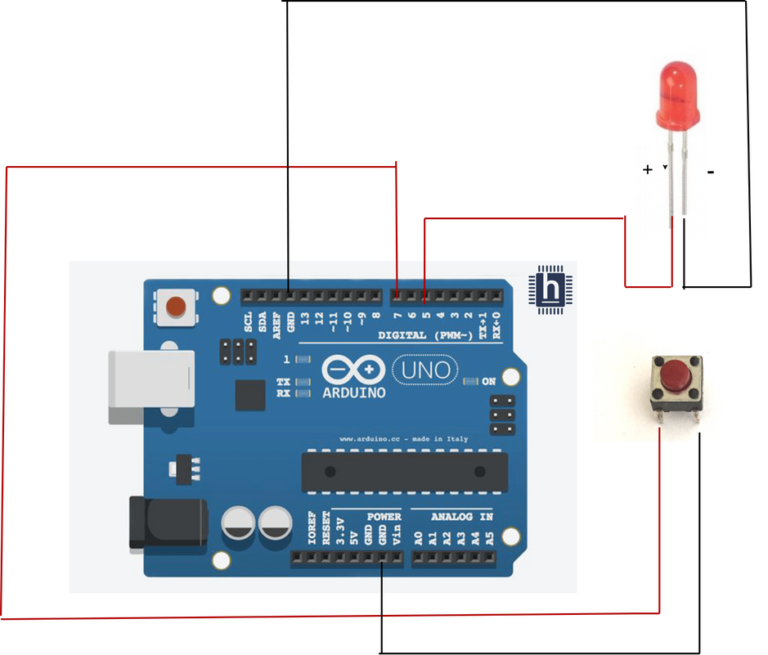
int led=5;
int button=7;
int val=0;
int old_val=0;
int state=0;
void setup (){
pinMode(led,OUTPUT);
pinMode(button,INPUT);
}
void loop()
{ val=digitalRead(button);
if( (val==HIGH) && (old_val==LOW)) {
state=1-state;}
old_val=val;
if (state==1) { digitalWrite(led, HIGH);}
else {digitalWrite (led,LOW);}
}}
Understand the functions of Push buttons and LEDs, and control LEDs using Arduino platform.
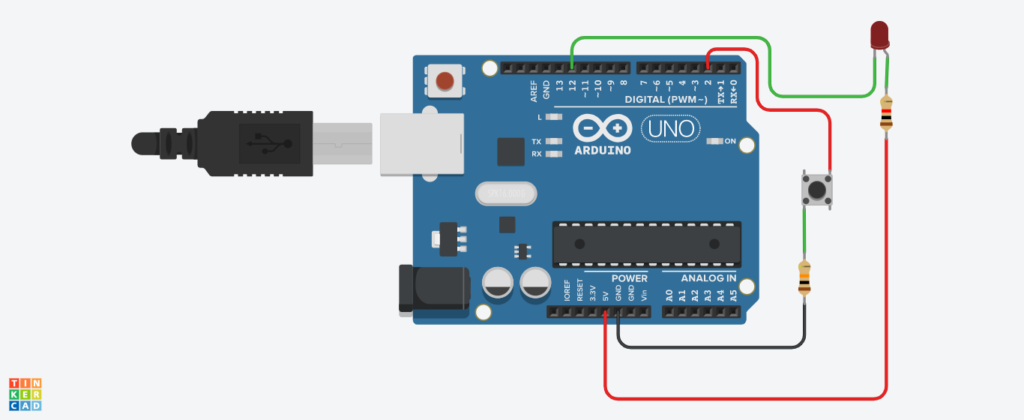
int LOW2=1;
int HIGH2=0;
void setup(){
pinMode(12, OUTPUT);
digitalWrite(12, LOW2);
pinMode(2,INPUT_PULLUP);
Serial.begin(9600);
}
void loop(){
int button = digitalRead(2);
delay(10);
Serial.print(button);
if (button){
digitalWrite(12, HIGH2);
delay(1000); // Wait for 1000 millisecond(s)
digitalWrite(12, LOW2);
delay(500); // Wait for 1000 millisecond(s)
}}
Blue Nile Software Systems Private Ltd is a professional IT Company supported by DMI Foundations,servicing the society for the past 18 years, it was incorporated on 26 August 2005.
Copyright © All rights reserved | Design & Developed by Blue Nile Software Systems Pvt. Ltd