
OBJECTIVE
The objective of an ESP8266 web server with LED control is to remotely turn an LED on or off through a web interface hosted by the ESP8266.
MODULES REQUIRED
- Node MCU
- Two LEDs
- Jumper wire
SCHEMATIC DIAGRAM
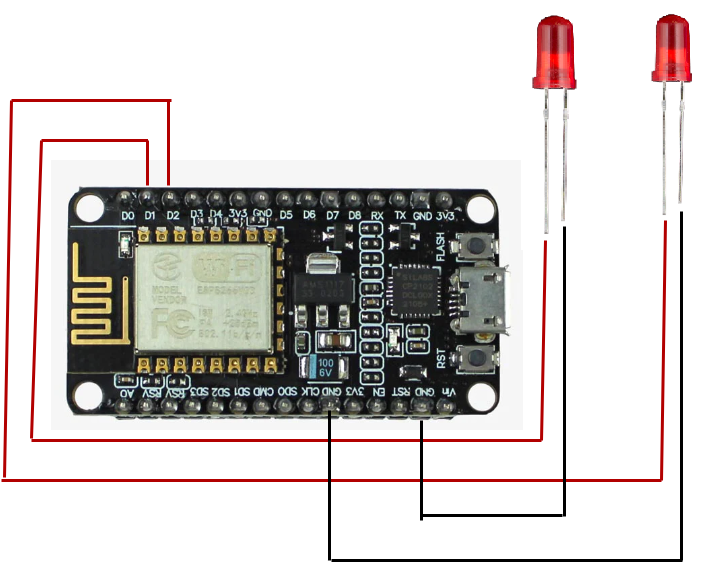
Connect LEDs
- connect D1 in the ESP8266 module to LED 1 postive pin
- connect D2 in the ESP8266 module to LED 2 postive pin
*Note: The negative pin (LED) connects to GND in the built-in circuit, no additional connection needed.
ARDUINO CODE
ARDUINO CODE
JavaScript
#include <ESP8266WiFi.h>
// Replace with your network credentials
const char* ssid  = "xxxxxx";
const char* password = "xxxxxx";
// Set web server port number to 80
WiFiServer server(80);
// Variable to store the HTTP request
String header;
// Auxiliar variables to store the current output state
String output5State = "off";
String output4State = "off";
// Assign output variables to GPIO pins
const int output5 = 5;
const int output4 = 4;
// Current time
unsigned long currentTime = millis();
// Previous time
unsigned long previousTime = 0;
// Define timeout time in milliseconds (example: 2000ms = 2s)
const long timeoutTime = 2000;
void setup() {
 Serial.begin(115200);
 // Initialize the output variables as outputs
 pinMode(output5, OUTPUT);
 pinMode(output4, OUTPUT);
 // Set outputs to LOW
 digitalWrite(output5, LOW);
 digitalWrite(output4, LOW);
 // Connect to Wi-Fi network with SSID and password
 Serial.print("Connecting to ");
 Serial.println(ssid);
 WiFi.begin(ssid, password);
 while (WiFi.status() != WL_CONNECTED) {
  delay(500);
  Serial.print(".");
 }
 // Print local IP address and start web server
 Serial.println("");
 Serial.println("WiFi connected.");
 Serial.println("IP address: ");
 Serial.println(WiFi.localIP());
 server.begin();
}
void loop(){
 WiFiClient client = server.available(); // Listen for incoming clients

 if (client) {              // If a new client connects,
  Serial.println("New Client.");     // print a message out in the serial port
  String currentLine = "";        // make a String to hold incoming data from the client
  currentTime = millis();
  previousTime = currentTime;
  while (client.connected() && currentTime - previousTime <= timeoutTime) { // loop while the client's connected
   currentTime = millis();
   if (client.available()) {      // if there's bytes to read from the client,
    char c = client.read();      // read a byte, then
    Serial.write(c);          // print it out the serial monitor
    header += c;
    if (c == '\n') {          // if the byte is a newline character
     // if the current line is blank, you got two newline characters in a row.
     // that's the end of the client HTTP request, so send a response:
     if (currentLine.length() == 0) {
      // HTTP headers always start with a response code (e.g. HTTP/1.1 200 OK)
      // and a content-type so the client knows what's coming, then a blank line:
      client.println("HTTP/1.1 200 OK");
      client.println("Content-type:text/html");
      client.println("Connection: close");
      client.println();
      // turns the GPIOs on and off
      if (header.indexOf("GET /5/on") >= 0) {
       Serial.println("GPIO 5 on");
       output5State = "on";
       digitalWrite(output5, HIGH);
      } else if (header.indexOf("GET /5/off") >= 0) {
       Serial.println("GPIO 5 off");
       output5State = "off";
       digitalWrite(output5, LOW);
      } else if (header.indexOf("GET /4/on") >= 0) {
       Serial.println("GPIO 4 on");
       output4State = "on";
       digitalWrite(output4, HIGH);
      } else if (header.indexOf("GET /4/off") >= 0) {
       Serial.println("GPIO 4 off");
       output4State = "off";
       digitalWrite(output4, LOW);
      }
// Display the HTML web page
      client.println("<!DOCTYPE html><html>");
      client.println("<head><meta name=\"viewport\" content=\"width=device-width, initial-scale=1\">");
      client.println("<link rel=\"icon\" href=\"data:,\">");
      // CSS to style the on/off buttons
      // Feel free to change the background-color and font-size attributes to fit your preferences
      client.println("<style>html { font-family: Helvetica; display: inline-block; margin: 0px auto; text-align: center;}");
      client.println(".button { background-color: #195B6A; border: none; color: white; padding: 16px 40px;");
      client.println("text-decoration: none; font-size: 30px; margin: 2px; cursor: pointer;}");
      client.println(".button2 {background-color: #77878A;}</style></head>");

      // Web Page Heading
      client.println("<body><h1>ESP8266 Web Server</h1>");
      // Display current state, and ON/OFF buttons for GPIO 5
      client.println("<p>GPIO 5 - State " + output5State + "</p>");
      // If the output5State is off, it displays the ON button
      if (output5State=="off") {
       client.println("<p><a href=\"/5/on\"><button class=\"button\">ON</button></a></p>");
      }
 else {
       client.println("<p><a href=\"/5/off\"><button class=\"button button2\">OFF</button></a></p>");
      }
      // Display current state, and ON/OFF buttons for GPIO 4
      client.println("<p>GPIO 4 - State " + output4State + "</p>");
      // If the output4State is off, it displays the ON button
      if (output4State=="off") {
       client.println("<p><a href=\"/4/on\"><button class=\"button\">ON</button></a></p>");
}
 else {
       client.println("<p><a href=\"/4/off\"><button class=\"button button2\">OFF</button></a></p>");
      }
      client.println("</body></html>");
             // The HTTP response ends with another blank line
      client.println();
      // Break out of the while loop
      break;
     } else { // if you got a newline, then clear currentLine
      currentLine = "";
     }
    }
else if (c != '\r') { // if you got anything else but a carriage return character,
 currentLine += c; // add it to the end of the currentLine
 }
 }
}
// Clear the header variable
 header = "";
 // Close the connection
 client.stop();
 Serial.println("Client disconnected.");
 Serial.println("");
 } }
INSTRUCTIONS
- Connect the modules and components as per the schematic diagram.
- Upload the Arduino code into the Node MCU board.
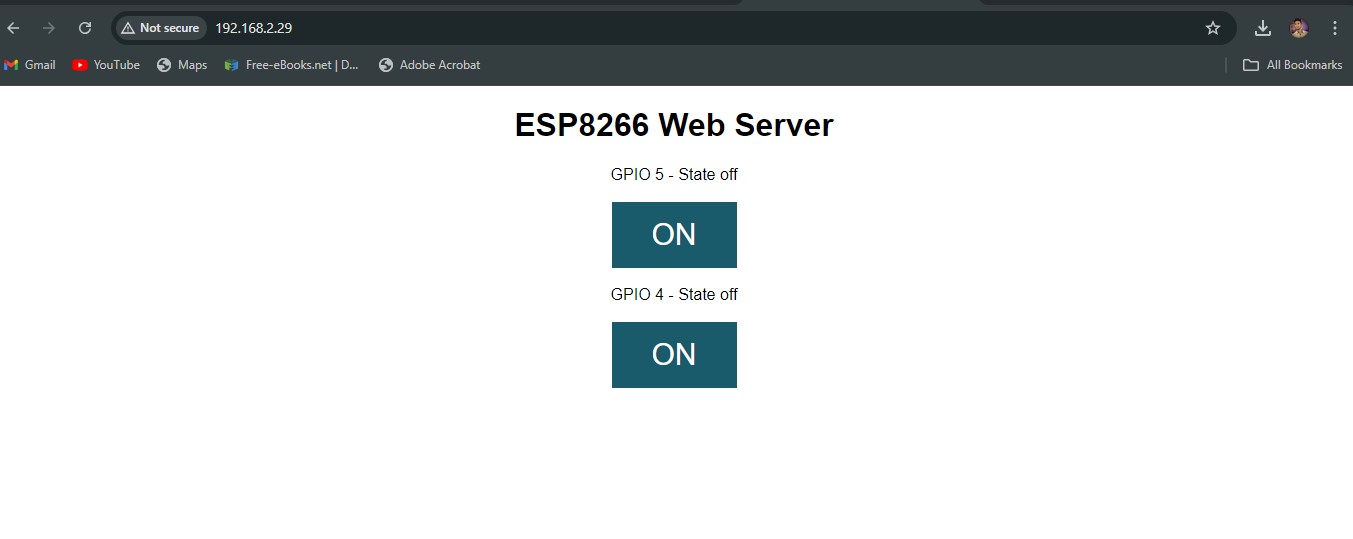
- For the final demonstration, open any browser from a device that is connected to the same router that your ESP8266 is. Then, type the ESP8266 IP address and click Enter!
- To get ip address,click the rst button in NodeMCU module and check the serial monitor as set the baud rate 115200.
- You will get the following interface page.
- And access the control of the connected LED by it.
WORKING
- The working of an ESP8266 web server with LED control involves the ESP8266 hosting a webpage. When a user accesses the webpage and clicks a button, the ESP8266 receives the command and toggles the LED on or off based on the user's input.
